Continue with Google
Choose your Google account and follow Google's sign-in steps. PennyKept uses your basic account identity, including email, to sign you in. It does not request access to your Gmail inbox.
Open sign in →PENNYKEPT CUSTOMER GUIDE
Google, an email link, or the face and fingerprint unlock you already use on your device. Here is how to choose, set up and get back in.
New here? Create your account first with Google or email. You add a passkey after signing in.
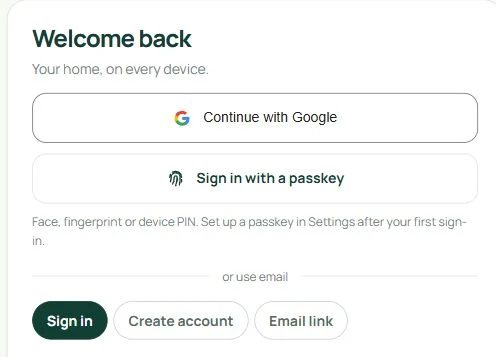
ONE ACCOUNT. A FEW WAYS IN.
Your household stays with your PennyKept account. Use the same account when you move between devices.
Choose your Google account and follow Google's sign-in steps. PennyKept uses your basic account identity, including email, to sign you in. It does not request access to your Gmail inbox.
Open sign in →Enter your email and password, or choose Email link for passwordless access to an existing account. Open the link from your inbox on the device you want to use. A Gmail address works here too.
First account? Choose Create account and confirm your email when asked.
After a one-time setup, your device can use your face, fingerprint, device PIN or a supported security key. Your device chooses the available method. PennyKept does not receive a face image or fingerprint.
Show me the setup →FIRST-TIME SETUP
Sign in with Google or email first. If your email needs confirmation, finish that before adding a passkey.
Tap More in the bottom navigation. Scroll to the App section and choose Settings.
The More screen uses fictional sample-home data. Your household name will be different.
Already signed in? Open Settings →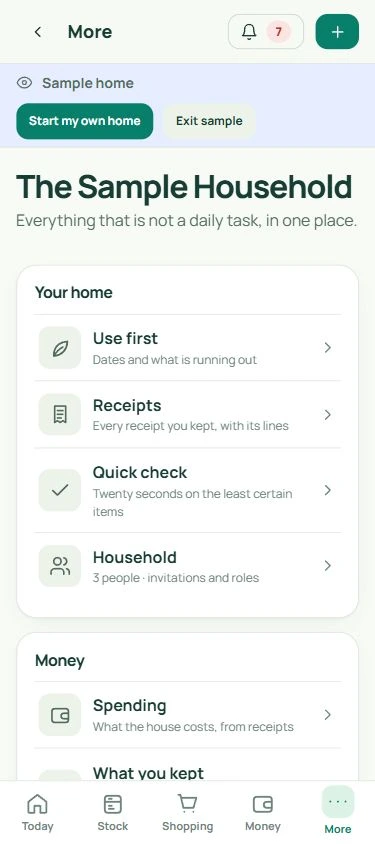
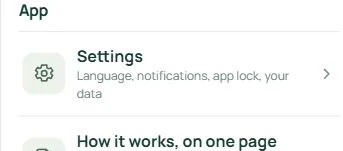
In Settings, scroll to the card called Sign-in passkeys. Choose Add a passkey.
Use your own signed-in account for this step. The sample home shows you around but cannot register a passkey.
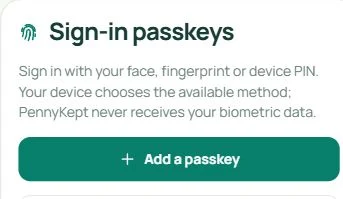
Your phone or computer opens its own secure passkey prompt. Choose where to save the passkey and confirm with the unlock method it offers.
You may see Face ID, Touch ID, a fingerprint prompt, Windows Hello or a device PIN. The exact screen depends on your device, browser and password manager.
No camera upload. No fingerprint upload. Look for PennyKept and pennykept.com in the prompt.
When PennyKept says Passkey added, setup is complete. Keep access to your email as a recovery option.
This panel explains the next step. It is not a screenshot of an operating-system prompt.NEXT TIME
You do not need to type your email into PennyKept first. A passkey registered to your account identifies the account when the sign-in is verified.
A successful local app unlock is different from signing in to your account.
WHEN YOU NEED A HAND
Email and Google remain useful fallback options when your usual passkey is unavailable.
Open More → Settings and scroll to Sign-in passkeys. Sign into your own account and confirm your email first. The sample home cannot create a passkey. If the browser is unsupported, use a supported browser on pennykept.com or sign in with email or Google.
The device chooses the method. It may offer a PIN or security key instead. Check that your device's screen lock and biometric unlock are configured. PennyKept cannot force a particular sensor or scan your face itself.
A local app-lock credential is not an account passkey. Sign in with email or Google, open More → Settings → Sign-in passkeys, and add an account passkey. If you have more than one saved credential, choose the one you registered to the intended PennyKept account.
Your password manager may sync your passkey, or your device may offer another-device sign-in. Availability varies. If your passkey is not available, use Google or email to access the same account and add a passkey on the new device. Do not create a second household by mistake.
Use Google or an email link to an account you already own. Once signed in, review your passkeys in Settings and remove any you no longer want registered. Removing a passkey from PennyKept does not delete its saved copy from your password manager.
Choose Sign in with a passkey again and complete the new prompt. If it still fails, use email or Google. Passkey login needs an internet connection so PennyKept can verify the sign-in.
Open More → Settings → Sign-in passkeys. Choose Rename beside a saved passkey, enter a name you recognise and Save. Choose Remove to revoke a credential and confirm the removal. Keep another way to access the account before removing your usual key.
Check the address, spam folder and your recent messages. Wait for the resend countdown, then request another link. Email link signs into an existing account; new users should choose Create account. If you forgot your password, use Forgot your password? on the sign-in form.
Tell us your device and browser, and the short error code shown in the app. Keep passwords, passkeys and verification codes private.